




Dimensions and weight
The following table lists the height, width, depth, and weight of your Alienware 16X Aurora AC16251.
| Description | Values |
|---|---|
| Height: | |
| Front height |
19.19 mm (0.76 in.) |
| Rear height |
16.30 mm (0.64 in.) |
| Width |
356.98 mm (14.05 in.) |
| Depth |
265.43 mm (10.45 in.) |
| Weight NOTE:The weight of your
computer depends on the configuration that you ordered.
|
2.66 kg (5.86 lb) - (minimum) |
Processor
The following table lists the details of the processors that are supported in your Alienware 16X Aurora AC16251.
| Description | Option one | Option two | Option three | Option four | Option five | |
|---|---|---|---|---|---|---|
| Processor type |
Intel Core Ultra 5 235HX |
Intel Core Ultra 7 255HX |
Intel Core Ultra 9 275HX |
Intel Core Ultra 7 270HX Plus |
Intel Core Ultra 9 290HX Plus |
|
| Processor wattage |
55 |
55 |
55 |
55 |
55 |
|
| Processor total core count |
14 |
20 |
24 |
20 |
24 |
|
| Performance-cores |
6 |
8 |
8 |
8 |
8 |
|
| Efficient-cores |
8 |
12 |
16 |
12 |
16 |
|
| Processor total thread
counts NOTE:Intel
Hyper-Threading Technology is only available on
Performance-cores.
|
14 |
20 |
24 |
20 |
24 |
|
| Processor speed |
Up to 5.1 GHz |
Up to 5.2 GHz |
Up to 5.4 GHz |
Up to 5.3 GHz |
Up to 5.5 GHz |
|
| Performance-cores frequency | ||||||
| Processor base frequency |
2.9 GHz |
2.4 GHz |
2.7 GHz |
2.4 GHz |
2.7 GHz |
|
| Maximum turbo frequency |
5.1 GHz |
5.2 GHz |
5.4 GHz |
5.3 GHz |
5.5 GHz |
|
| Efficient-cores frequency | ||||||
| Processor base frequency |
2.6 GHz |
1.8 GHz |
2.1 GHz |
1.8 GHz |
1.8 GHz |
|
| Maximum turbo frequency |
4.5 GHz |
4.5 GHz |
4.6 GHz |
4.6 GHz |
4.7 GHz |
|
| Processor cache |
24 MB |
30 MB |
36 MB |
30 MB |
36 MB |
|
| Integrated graphics |
Intel Graphics |
Intel Graphics |
Intel Graphics |
Intel Arc Graphics |
Intel Arc Graphics |
|
| AI technology | Intel AI Boost | Intel AI Boost | Intel AI Boost | Intel AI Boost | Intel AI Boost | |
| Neural Processing Unit (NPU) performance | Up to 13 TOPS | Up to 13 TOPS | Up to 13 TOPS | Up to 13 TOPS | Up to 13 TOPS | |
|
NOTE:Tera Operations Per Second (TOPS) is an
AI performance metric that measures how many trillions of
operations per second an AI processor can perform.
|
||||||
Chipset
The following table lists the details of the chipset that is supported in your Alienware 16X Aurora AC16251.
| Description | Option one | Option two | Option three | Option four | Option five |
|---|---|---|---|---|---|
| Processors |
Intel Core Ultra 5 235HX |
Intel Core Ultra 7 255H |
Intel Core Ultra 9 275H |
Intel Core Ultra 7 270HX Plus | Intel Core Ultra 9 290HX Plus |
| Chipset |
Intel 800 series |
Intel 800 series |
Intel 800 series |
Intel 800 series | Intel 800 series |
| DRAM bus width |
128-bit |
128-bit |
128-bit |
128-bit | 128-bit |
| Flash EPROM |
48 MB |
48 MB |
48 MB |
48 MB | 48 MB |
| PCIe bus |
Up to Gen 4.0 |
Up to Gen 4.0 |
Up to Gen 4.0 |
Up to Gen 4.0 | Up to Gen 4.0 |
Operating system
Your Alienware 16X Aurora AC16251 supports the following operating systems:
- Windows 11 Home (64-bit)
- Windows 11 Professional (64-bit)
Memory
The following table lists the memory specifications that are supported by your Alienware 16X Aurora AC16251.
| Description | Values |
|---|---|
| Memory slots |
Two-SODIMM slots |
| Memory type |
DDR5 |
| Memory speed |
|
| Maximum memory configuration |
64 GB |
| Minimum memory configuration |
8 GB |
| Memory size per slot |
8 GB, 16 GB, and 32 GB |
| Memory configurations supported |
|
External ports and slots
The following table lists the external ports and slots on your Alienware 16X Aurora AC16251.
| Description | Values |
|---|---|
| Network port |
One RJ45 ethernet port (1 Gbps) |
| USB ports |
|
| Audio port |
One universal audio jack (RCA, 3.5 mm) |
| Video port(s) |
One HDMI 2.1 port with Discrete Graphics Controller Direct Output |
| Media-card reader |
Not supported |
| Power-adapter port |
One 7.4 mm x 5.1 mm, DC-in port |
| Security-cable slot |
Not supported |
Internal slots
The following table lists the internal slots of your Alienware 16X Aurora AC16251.
| Description | Values |
|---|---|
| M.2 |
Two M.2 2230 or M.2 2280 solid state drive slots
NOTE:The M.2 2280 PCIe Gen5 x4 NVMe SSD is
supported only in the SSD‑1 slot on computers shipped with an
NVIDIA GeForce RTX 5070 Ti GPU. NOTE:To learn more about the features of
different types of M.2 cards, search Dell Support Site.
|
Ethernet
The following table lists the wired ethernet Local Area Network (LAN) specifications of your Alienware 16X Aurora AC16251.
| Description | Values |
|---|---|
| Model |
Realtek RTL8111H Gigabit Ethernet controller |
| Transfer rate |
1000 Mbps for Ethernet controller |
Wireless module
The following table lists the Wireless Local Area Network (WLAN) module that is supported on your Alienware 16X Aurora AC16251.
| Description | Values |
|---|---|
| Model number |
MediaTek MT7925B22M |
| Transfer rate |
Up to 2882 Mbps |
| Frequency bands supported |
2.4 GHz/ 5 GHz/ 6 GHz |
| Wireless standards |
|
| Encryption |
|
| Bluetooth wireless card NOTE:The functionality of
the Bluetooth wireless card may vary based on the operating
system. |
Bluetooth 5.4 wireless card |
Audio
The following table lists the audio specifications of your Alienware 16X Aurora AC16251.
| Description | Values | |
|---|---|---|
| Audio controller |
Realtek ALC3204 |
|
| Stereo conversion |
Supported |
|
| Internal audio interface |
High-definition audio interface |
|
| External audio interface |
|
|
| Number of speakers |
Two |
|
| Internal-speaker amplifier |
Supported |
|
| External volume controls |
Keyboard shortcut controls |
|
| Speaker output: | ||
| Average |
2 W + 2 W = 4 W |
|
| Peak |
2.5 W + 2.5 W = 5 W |
|
| Microphone |
Digital-array microphones in camera assembly |
|
Storage
This section lists the storage options on your Alienware 16X Aurora AC16251.
| Storage type | Interface type | Capacity |
|---|---|---|
|
M.2 2230 solid state drive |
PCIe Gen 4 NVMe, up to 64 Gbps |
Up to 1 TB per slot |
|
M.2 2280 solid state drive, Self-Encrypting Drive Opal 2.0 |
PCIe Gen 4 NVMe, up to 64 Gbps |
Up to 2 TB per slot |
|
M.2 2280 solid state drive |
PCIe Gen4 NVMe, up to 64 Gbps |
Up to 2 TB per slot |
|
M.2 2280 solid state drive
NOTE:This configuration is only available on computers that are
shipped with NVIDIA GeForce RTX 5070 Ti. |
PCIe Gen5 NVMe, up to 64 Gbps |
Up to 2 TB in the SSD-1 slot |
Keyboard
The following table lists the keyboard specifications of your Alienware 16X Aurora AC16251.
| Description | Values |
|---|---|
| Keyboard type |
One-zone RGB backlit keyboard |
| Keyboard layout |
QWERTY |
| Number of keys |
|
| Key pitch |
X = 18.70 mm key pitch Y = 18.05 mm key pitch |
| Keyboard shortcuts |
Some keys on your keyboard have two symbols on
them. These keys can be used to type alternate characters or to
perform secondary functions. To type the alternate character, press
Shift and the desired key. To perform secondary functions, press Fn
and the desired key.
NOTE:You can define
the primary behavior of the function keys (F1–F12) changing
Function Key Behavior in BIOS setup
program. For more information, see Keyboard shortcuts. |
Keyboard shortcuts
Some keys on your keyboard have two symbols on them. These keys can be used to type alternate characters or to perform secondary functions. The symbol that is shown on the lower part of the key sees the character that is typed out when the key is pressed. If you press shift and the key, the symbol that is shown on the upper part of the key is typed out. For example, if you press 2, 2 is typed out; if you press Shift + 2, @ is typed out.
The keys F1-F12 at the top row of the keyboard are function keys for multimedia control, as indicated by the icon on the key. Press the function key to invoke the task represented by the icon. For example, pressing F6 disables or enables performance boost (see the table below).
| Keys | Description |
|---|---|
 | Decrease display brightness. |
 | Increase display brightness. |
 | Disable or enable Performance Boost. |
 | Enable or disable AW Stealth mode. When
Stealth mode is enabled, the AlienFX lighting is turned off.
Performance settings change to Quiet mode. NOTE:The AlienFX
lighting zone varies depending on the configuration of your
computer. |
 | Switch to an external display. |
 | Adjust keyboard backlight brightness. |
 | Prints screen. |
 + +  | Disable or enable the touchpad. |
Your computer comes with preprogrammable macro keys that enable you to perform multiple actions with a single keystroke.
| Keys | Description |
|---|---|
 | Macro keys NOTE:You can
configure modes and assign multiple tasks for the macro keys
on the keyboard. |
 | |
 |
Your computer comes with dedicated keys that enable you to control specific features of the computer with a single key press.
| Keys | Description |
|---|---|
 | Mute speakers |
 | Increase volume |
 | Decrease volume |
 | Copilot in Windows AI hotkey.
Press Fn+Copilot hotkey to show the contextual menu. NOTE:If Copilot in
Windows is not available on your computer, pressing the Copilot
key launches Windows search. For more information about Copilot
in Windows, search in the Knowledge Base Resource at the Dell Support site. |
 | Activates the Windows Start screen when the Windows key is pressed. |
Camera
The following table lists the camera specifications of your Alienware 16X Aurora AC16251.
| Description | Values | ||
|---|---|---|---|
| Number of cameras |
Two |
||
| Camera type |
FHD RGB + IR camera |
||
| Camera location |
Front |
||
| Camera sensor type |
CMOS sensor technology |
||
| Camera resolution: | |||
| Still image |
2.07 megapixels |
||
| Video |
1920 x 1080 at 30 fps |
||
| Infrared camera resolution: | |||
| Video |
640 x 360 at 15 fps |
||
| Diagonal viewing angle: | |||
| Camera |
80.2 degrees |
||
| Infrared camera |
86.6 degrees |
||
Touchpad
The following table lists the touchpad specifications of your Alienware 16X Aurora AC16251.
| Description | Values | |
|---|---|---|
| Touchpad resolution: | ||
| Horizontal |
>300 DPI |
|
| Vertical |
749 |
|
| Touchpad dimensions: | ||
| Horizontal |
115 mm (4.53 in.) |
|
| Vertical |
70 mm (2.76 in.) |
|
| Touchpad gestures | For more information about the touchpad gestures available on Windows, search Microsoft Support Site. | |
Power adapter
The following table lists the power adapter specifications of your Alienware 16X Aurora AC16251.
| Description | Option one | Option two | |
|---|---|---|---|
| Type |
180 W AC adapter, E4
NOTE:This adapter is only available with
computers shipped with an NVIDIA GeForce RTX 5060. |
280 W AC adapter, E5
NOTE:This adapter is only available with
computers shipped with an NVIDIA GeForce RTX 5070 or 5070
Ti. |
|
| Connector dimensions: | |||
| External diameter |
7.4 mm |
7.4 mm |
|
| Internal diameter |
5.1 mm |
5.1 mm |
|
| Power-adapter dimensions: | |||
| Height Width |
30 mm (1.18 in.) |
26.5 mm (1.04 in.) |
|
|
76.2 mm (3.0 in.) |
105 mm (4.13 in.) |
||
| Depth |
155 mm (6.1 in.) |
206 mm (8.11 in.) |
|
| Input voltage |
100 VAC–240 V |
100 VAC–240 VAC |
|
| Input frequency |
50 Hz–60 Hz |
50 Hz–60 Hz |
|
| Input current (maximum) |
2.34 A |
4 A/2 A |
|
| Output current (continuous) |
9.23 A |
14.26 A |
|
| Rated output voltage |
19.5 VDC |
19.50 VDC |
|
| Temperature range: | |||
| Operating |
0°C to 40°C (32°F to 104°F) |
0°C to 40°C (32°F to 104°F) |
|
| Storage |
-40°C to 70°C (-40°F to 158°F) |
-40°C to 70°C (-40°F to 158°F) |
|
|
CAUTION:Operating and storage temperature ranges may differ among components, so operating or storing the device outside these ranges may impact the performance of specific components.
|
|||
Power adapter requirements
The following table lists the power adapter requirements for your Alienware 16X Aurora AC16251.
| Description | For computers shipped with NVIDIA GeForce 5060 | For computers shipped with NVIDIA GeForce 5070 or 5070 Ti |
|---|---|---|
| Power that is required from a power adapter to achieve optimal performance. | 180 W | 280 W |
| Power that charges the computer at a
slower speed. NOTE:A
warning message may appear informing you about the use of a
lower-powered adapter and slower charging speed.
|
Less than 180 W | Less than 280 W |
| Minimum power that is required from a
power adapter to operate the computer and charge the battery. NOTE:A warning message
appears informing you about the use of a lower-powered adapter
and slower charging speed.
|
90 W | 90 W |
| USB Power Delivery (PD) fast charging | Supported | Supported |
| ExpressCharge mode | Supported NOTE:Ensure that the
computer is connected to a 100 W power adapter for this feature
to be supported. |
Supported NOTE:Ensure that the computer is
connected to a 100 W power adapter for this feature to be
supported. |
Battery
The following table lists the battery specifications of your Alienware 16X Aurora AC16251.
| Description | Values | |
|---|---|---|
| Battery type | 6-cell Lithium-Ion (96 Wh) ExpressCharge Boost NOTE:For computers shipped
to the EU region, the battery supports only
ExpressCharge. |
|
| Battery voltage | 11.70 VDC | |
| Battery weight (maximum) | 351 g (0.77 lb) | |
| Battery dimensions: | ||
| Height | 7.71 mm (0.30 in.) | |
| Width | 294.90 mm (11.61 in.) | |
| Depth | 77.50 mm (3.05 in.) | |
| Temperature range: | ||
| Operating | 0°C to 60°C (32°F to 140°F) | |
| Storage | -20°C to 60°C (-4°F to 140°F) | |
| Battery operating time | Varies depending on operating conditions and can significantly reduce under certain power-intensive conditions. | |
| Battery charging time (approximate)
NOTE:You can control the
charging time, duration, start and end time, and so on, from the
BIOS settings in the BIOS Advanced menu.
|
|
|
| Coin-cell battery | Not supported | |
|
CAUTION:Operating and storage temperature ranges may differ among
components, so operating or storing the device outside these ranges
may impact the performance of specific components.
CAUTION:Dell
Technologies recommends that you charge the battery regularly for
optimal power consumption.
|
||
Power requirements (for computers shipped with 6-cell, 96 Wh battery)
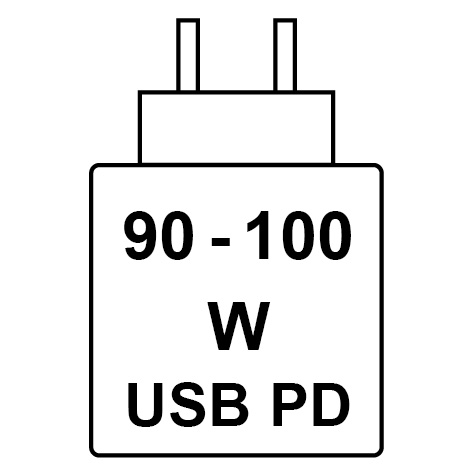
The power that is delivered by the charger must be between a minimum of 90 Watts that is required by the radio equipment, and a maximum of 100 Watts in order to achieve the maximum charging speed.
This computer supports USB Power Delivery (PD) fast charging.
Display
The following table lists the display specifications of your Alienware 16X Aurora AC16251.
| Description | Option one | Option two | |
|---|---|---|---|
| Display type |
16-inch, Wide Quad Extended Graphics Array (WQXGA), Adaptive Sync, NVIDIA G-SYNC, Low Blue Light |
16-inch, Wide Quad Extended Graphics Array (WQXGA), OLED, Adaptive Sync, NVIDIA G-SYNC, Low Blue Light, HDR TB500, VESA ClearMR9000 certified |
|
| Touch options |
Not supported |
Not supported |
|
| Display-panel technology |
Wide Viewing Angle (WVA) |
Organic Light Emitting Diode (OLED) |
|
| Display-panel dimensions (active area): | |||
| Height |
215.42 mm (8.48 in.) |
215.42 mm (8.48 in.) |
|
| Width |
344.68 mm (13.57 in.) |
344.68 mm (13.57 in.) |
|
| Diagonal |
406.46 mm (16 in.) |
406.46 mm (16 in.) |
|
| Display-panel native resolution |
2560 x 1600 |
2560 x 1600 |
|
| Luminance (typical) |
500 nits |
620 typ. nits HDR peak luminance (400 typ. nits luminance at SDR) |
|
| Megapixels |
4.1 |
4.1 |
|
| Color gamut |
DCIP3 100% (typical) |
100% DCIP-3 color gamut with VESA DisplayHDR True Black 500 certification |
|
| Pixels Per Inch (PPI) |
189 |
188.70 |
|
| Contrast ratio (minimum) |
1000:1 |
1000000:1 (typ) contrast ratio |
|
| Response time (maximum) |
|
0.2 ms |
|
| Refresh rate |
240 Hz |
240 Hz |
|
| Horizontal view angle |
+/- 85 degrees (typical) |
+/- 85 degrees |
|
| Vertical view angle |
+/- 85 degrees (typical) |
+/- 85 degrees |
|
| Pixel pitch |
0.13464 mm |
0.13 mm |
|
| Power consumption (maximum) |
4 W |
7.2 W |
|
| Anti-glare vs glossy finish |
Anti-glare |
Anti-glare |
|
GPU—Integrated
The following table lists the specifications of the integrated Graphics Processing Unit (GPU) supported by your Alienware 16X Aurora AC16251.
| Controller | Memory size | Processor |
|---|---|---|
|
Intel Graphics |
Shared system memory |
Intel Core Ultra HX series |
GPU—Discrete
The following table lists the specifications of the discrete Graphics Processing Unit (GPU) supported by your Alienware 16X Aurora AC16251.
| Controller | Memory size | Memory type |
|---|---|---|
|
NVIDIA GeForce RTX 5060 |
8 GB |
GDDR7 |
|
NVIDIA GeForce RTX 5070 |
8 GB |
GDDR7 |
|
NVIDIA GeForce RTX 5070 Ti |
12 GB |
GDDR7 |
External display support
The following table lists the external display support for your Alienware 16X Aurora AC16251.
| Graphics card | Supported external displays with laptop display enabled | Supported external displays with laptop display disabled |
|---|---|---|
| Intel Graphics | Supports three external displays:
|
Supports four external displays:
|
| NVIDIA GeForce RTX 5060 NVIDIA GeForce RTX 5070 NVIDIA GeForce RTX 5070 Ti |
Supports two G-SYNC capable external displays:
NOTE:To enable G-SYNC, see Enabling G-SYNC.
|
Supports two G-SYNC capable external displays:
NOTE:To enable G-SYNC, see Enabling G-SYNC.
|
Enabling G-SYNC
To enable G-SYNC, switch to discrete graphics (dGPU) mode through the NVIDIA control panel or connect to a G-SYNC capable monitor. Once you are at the NVIDIA control panel, go to the settings to set up G-SYNC and follow the steps below.
- From the NVIDIA Control Panel
navigation tree pane, under
Display, click Set up G-SYNC.
NOTE:For more information about which port on your computer supports G-SYNC, see External display support.
- Select the Enable G-SYNC, G-SYNC Compatible check box, if not enabled earlier.
- Depending on the applications you want to run on your computer, select Enable for full screen mode or Enable for windowed and full screen mode,
- Select a display that you would like to
enable the setting.
- At Select a display, by selecting the display model icon.
- At Choose display specific
setting, check the Enable settings for the
selected display model check box.NOTE: This step applies to either G-SYNC compatible displays or VRR displays that have not been validated by NVIDIA as G-SYNC Compatible.
Operating and storage environment
This table lists the operating and storage specifications of your Alienware 16X Aurora AC16251.
Airborne contaminant level: G1 as defined by ISA-S71.04-1985
| Description | Operating | Storage |
|---|---|---|
| Temperature range |
0°C–35°C (32°F–95°F) |
-40°C–65°C (-40°F–149°F) |
| Relative humidity (maximum) |
10%–90% (non-condensing) |
5% to 95% (non-condensing) |
| Vibration (maximum)* |
0.66 GRMS |
Not applicable |
| Shock (maximum) |
140 G† |
Not applicable |
| Altitude range |
-15.20 m to 3048 m (-49.87 ft to 10000 ft) |
-15.20 m to 10668 m (-49.87 ft to 35000 ft) |
|
CAUTION:Operating and storage temperature ranges may differ among components, so operating or storing the device outside these ranges may impact the performance of specific components.
|
||
* Measured using a random vibration spectrum that simulates the user environment.
† Measured using a 2 ms half-sine pulse.
Dell support policy
For information about Dell support policy, search Dell Support Site.
Dell low blue light display
Blue light is a color in the light spectrum which has a short wavelength and high energy. Chronic exposure to blue light, particularly from digital sources may disrupt sleep patterns and cause long-term effects such as eye strain, eye fatigue, or damage to the eyes.
The display on this computer is designed to minimize blue light and complies with TÜV Rheinland's requirement for low blue light displays.
Low blue light mode is enabled at the factory, so no further configuration is necessary.
To reduce the risk of eye strain, it is also recommended that you:
- Position the display at a comfortable viewing distance between 20 and 28 inches (50 cm and 70 cm) from your eyes.
- Blink frequently to moisten your eyes, wet your eyes with water, or apply suitable eye drops.
- Take an extended break for 20 minutes every two hours.
- Look away from your display, and gaze at a distant object at 20 ft (609.60 cm) away for at least 20 seconds during each break.